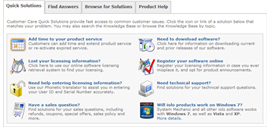
Install and Activate System Mechanic®
Copy or Print your Activation Key
Your Activation Key:


Save File
When asked if you would like to save the file, click Save.
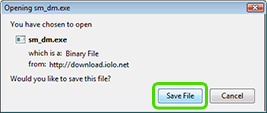
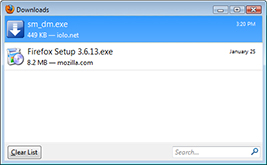
Run File
The sm_dm.exe icon will appear in a pop-up window. Double-click on it to begin the download.
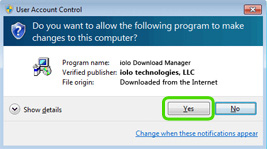
Confirm Run File
If asked if you want to allow the program to make changes to this computer, click Yes.
Save Installer
- Allow the download to finish.
- When the Installer has finished downloading, you will be given the option to save the installation file to your computer.
- If you want to save a copy, choose Yes, and save it to a convenient place on your PC. If you do not need a copy, click No.
- When you are finished with this step, the Installer will start automatically.
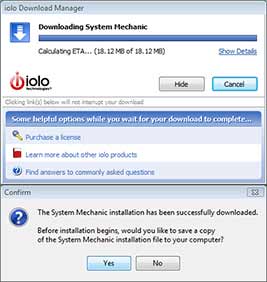
Run File
If asked whether to Save or Run the file, choose “Run“.
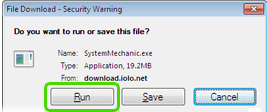
Confirm Run File
If asked to confirm your choice, again choose “Run“.
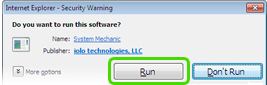
Finish download
Allow the download to finish.
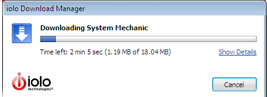
Save Installer
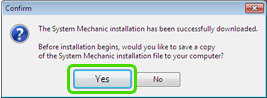
- When the Installer has been downloaded, you may optionally save it to your computer.
- If you want to save a copy, choose “Yes” and save it to a convenient place on your PC.
- When you are finished, the Installer will automatically start.
Run File
If asked whether to Save or Run the file, choose “Run“.
Confirm Run File
If asked to confirm your choice, again choose “Run“.
Finish download
Allow the download to finish.
Save Installer
- When the Installer has been downloaded, you may optionally save it to your computer.
- If you want to save a copy, choose “Yes” and save it to a convenient place on your PC.
- When you are finished, the Installer will automatically start.
Run File
If asked whether to Save or Run the file, choose “Run“.
Confirm Run File
If asked to confirm your choice, again choose “Run“.
Finish download
Allow the download to finish.
Save Installer
- When the Installer has been downloaded, you may optionally save it to your computer.
- If you want to save a copy, choose “Yes” and save it to a convenient place on your PC.
- When you are finished, the Installer will automatically start.
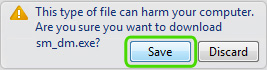
Save File
If prompted with this warning message, choose Save.
Confirm Run File
The sm_dm.exe file will appear at the bottom of your browser. Click on it to begin the download.

Finish download
If asked for further permission, choose Yes.
Save Installer
- Allow the download to finish.
- When the Installer has finished downloading, you will be given the option to save the installation file to your computer.
- If you want to save a copy, choose Yes, and save it to a convenient place on your PC. If you do not need a copy, click No.
- When you are finished with this step, the Installer will start automatically.
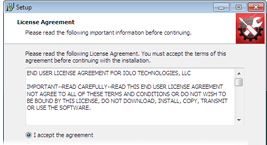
Begin Installation
When the Installer starts, follow its step-by-step instructions until you see a windows that asks for your License Information.
Enter Activation key
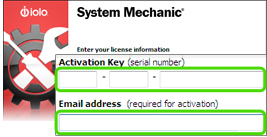
- Carefully type the Activation key and your email address into the License Information window.
- Click OK.
Complete Installation
- Continue following the step-by-step instructions to complete the installation process.
- When you are finished, you may need to restart your PC.
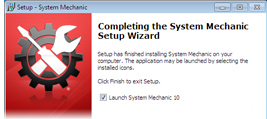
Run System Mechanic
If System Mechanic does not start immediately after activation, double-click this desktop icon.

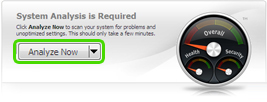
Perform System Analysis
Once System Mechanic has obtained and applied all critical updates, perform a System Analysis by clicking Analyze Now.
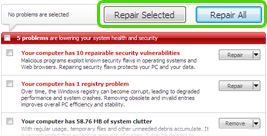
Review and Repair Problems
- When the System Analysis is complete, a full list of system problems will be generated.
- You can review and automatically repair any of these problems by using the options on System mechanic’s dashboard.
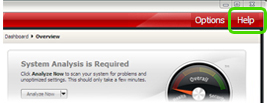
Use the Help Files
While using System Mechanic, you can look up useful tips, information, and instructions by accessing the built-in help system.
Visit Customer Care Online
If you can’t find what you’re looking for, visit iolo customer care online for FAQs, tutorials, and the ability to contact a live support agent.